Router Information
SSID Name: PEPWAVE_XXXX where XXXX are the last 4 characters of your router's serial number.
SSID Password: The AP password is listed on the silver label at the bottom of the device.
Login Page: 192.168.50.1
Login Username: admin
Login Password: password
Box contents
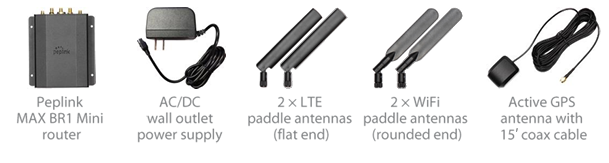
Attach the antennas
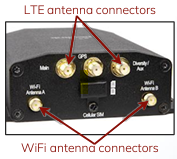
- Attach the two flat-end LTE paddle antennas to the router’s threaded Main (top left) and Diversity/Aux (top right) connectors and hand tighten them. If your system includes a separate MIMO antenna, skip this step and connect the MIMO antenna to the Main and Diversity/Aux connectors instead.
- Attach the two rounded-end Wi-Fi paddle antennas to the router’s threaded Wi-Fi Antenna A (bottom left) and Wi-Fi Antenna B (bottom right) connectors and hand tighten them.
Power up the router
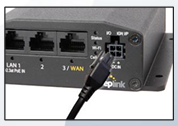
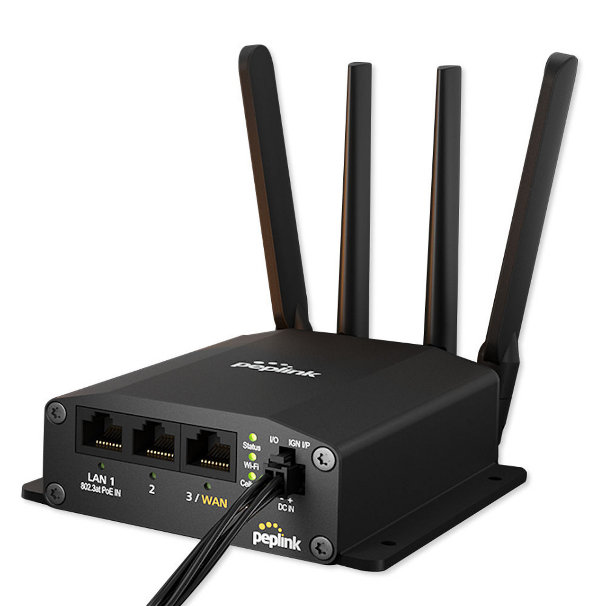
- Connect the power supply to the router’s DC- IN+ port. The release DC IN TS007001 Tip: Keep the manufacturer’s box and all its contents. The packaging contains important information for technical support and reordering. LTE antenna connectors Wi-Fi antenna connectors clip must be facing up for the connector to click into place. Plug the other end of the power supply into an AC wall outlet.
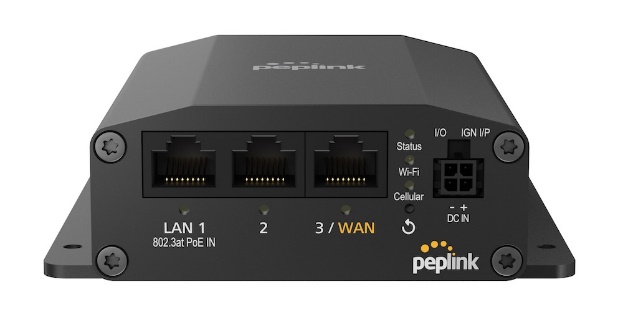
- Once the router is connected to a power source, the Status light will turn red. Within 3 to 5 minutes, all three lights—Status, Wi-Fi, and Cellular—should turn green, indicating that the router is functioning properly.
Connect to the router’s default Wi-Fi network
*Please note that you can also connect to the router by directly connecting an ethernet cable to one of the three LAN or LAN/WAN ports.
- Open the Wi-Fi settings on your computer, tablet, or smartphone. Find and connect to the “PEPWAVE_XXXX” network.
- Use the “password” password to gain access to the Wi-Fi network.
Log into the router
The router is administered through a web-based dashboard.
- Open a web browser (like Google Chrome, Apple Safari, Mozilla Firefox, or Microsoft Edge) on your computer, tablet, or smartphone. In the address bar at the top of the browser, type “192.168.50.1” and press Enter. (The browser may warn you that you’re connecting to an insecure link; allow it to proceed anyway.)
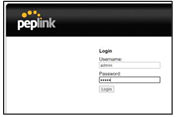
- At the Peplink login screen, enter the username “admin” and password “password” and then click “Login”.
Final product
Was this article helpful?
That’s Great!
Thank you for your feedback
Sorry! We couldn't be helpful
Thank you for your feedback
Feedback sent
We appreciate your effort and will try to fix the article